

Target company
Each room in Flowla is usually dedicated to one company. Selecting a target company personalizes the room automatically with the company’s branding and fills out target company related variables. It also helps with reporting and filtering of rooms in your dashboard.Select a target company when creating a room
During room creation, on the second step “Choose company”: Option A: Create or select a company in Flowla Search by domain or name to quickly create and link a target company.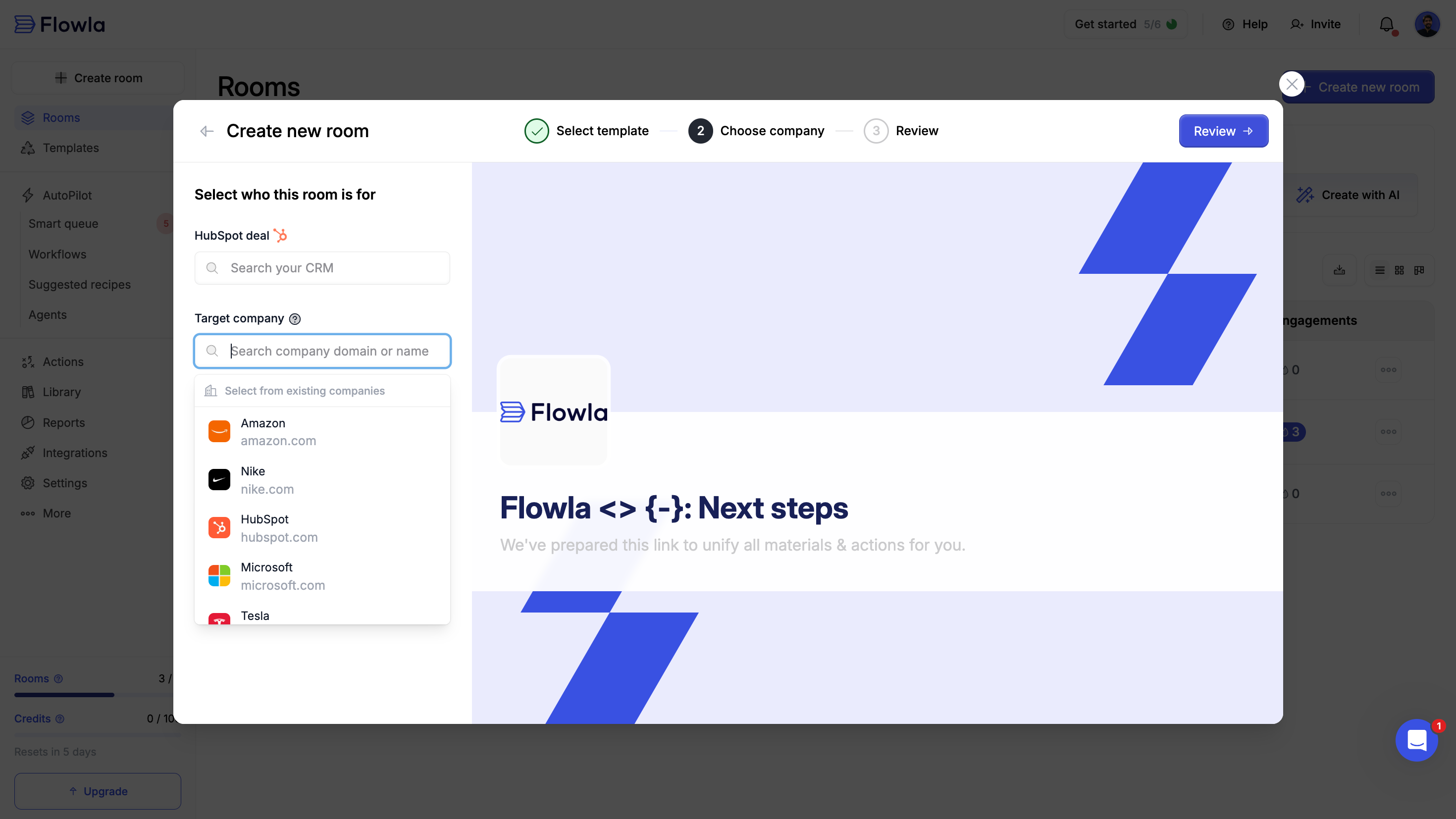
- Flowla automatically pulls the deal’s company information and enriches branding and logo
- Deal information will be synced to your room
- Room information and engagements will be synced to your CRM
Change target company of an existing room
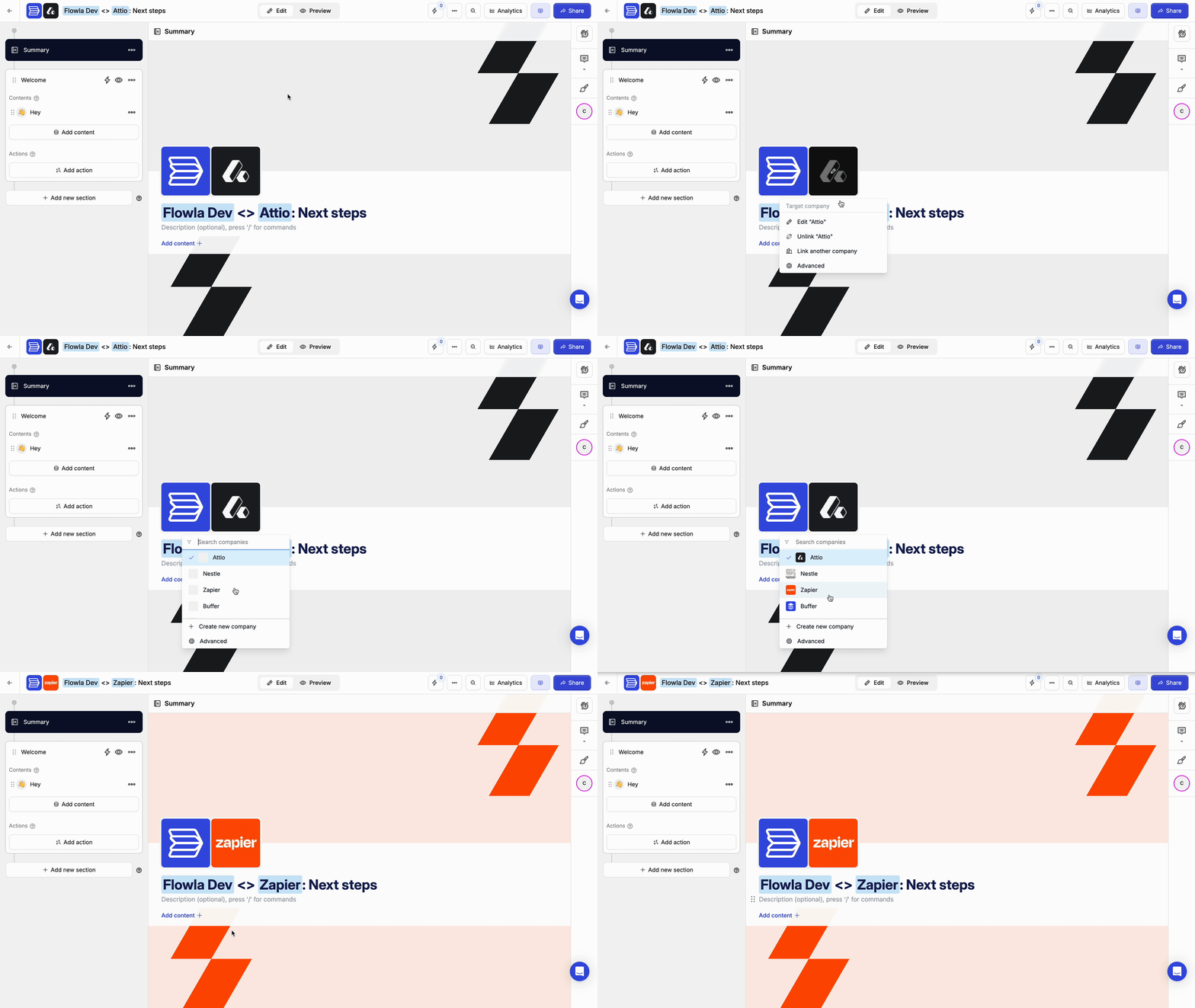
- Open your room and navigate to the Summary step
- Click on the company logo
- Select Link another company and search or create a new target company
Edit existing company details inside a room
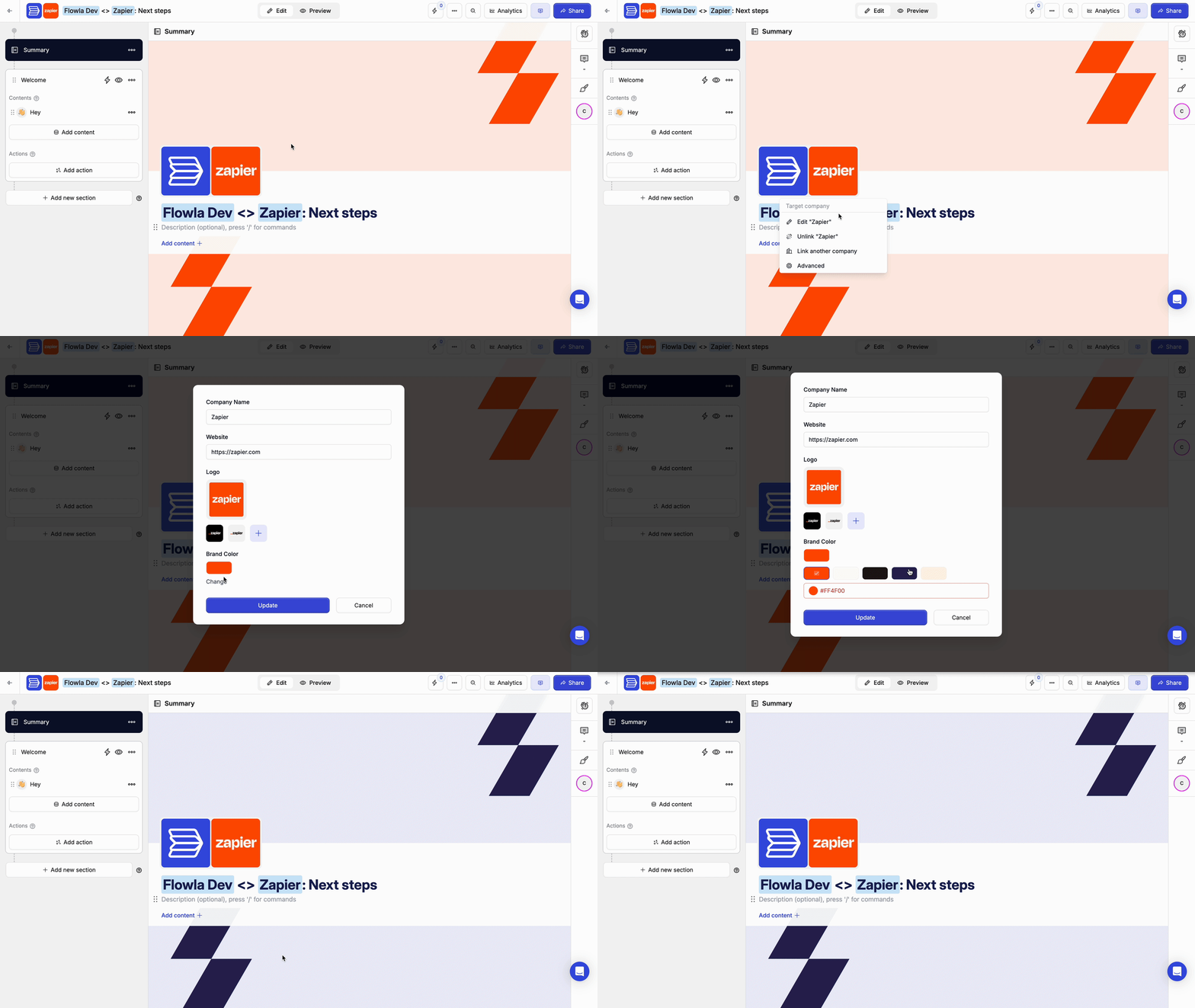
- Open your room and navigate to the Summary step
- Click on the company logo
- Click on Edit [company name]
- Update the company name, logo, or other details
- Save your changes
Edit existing companies centrally
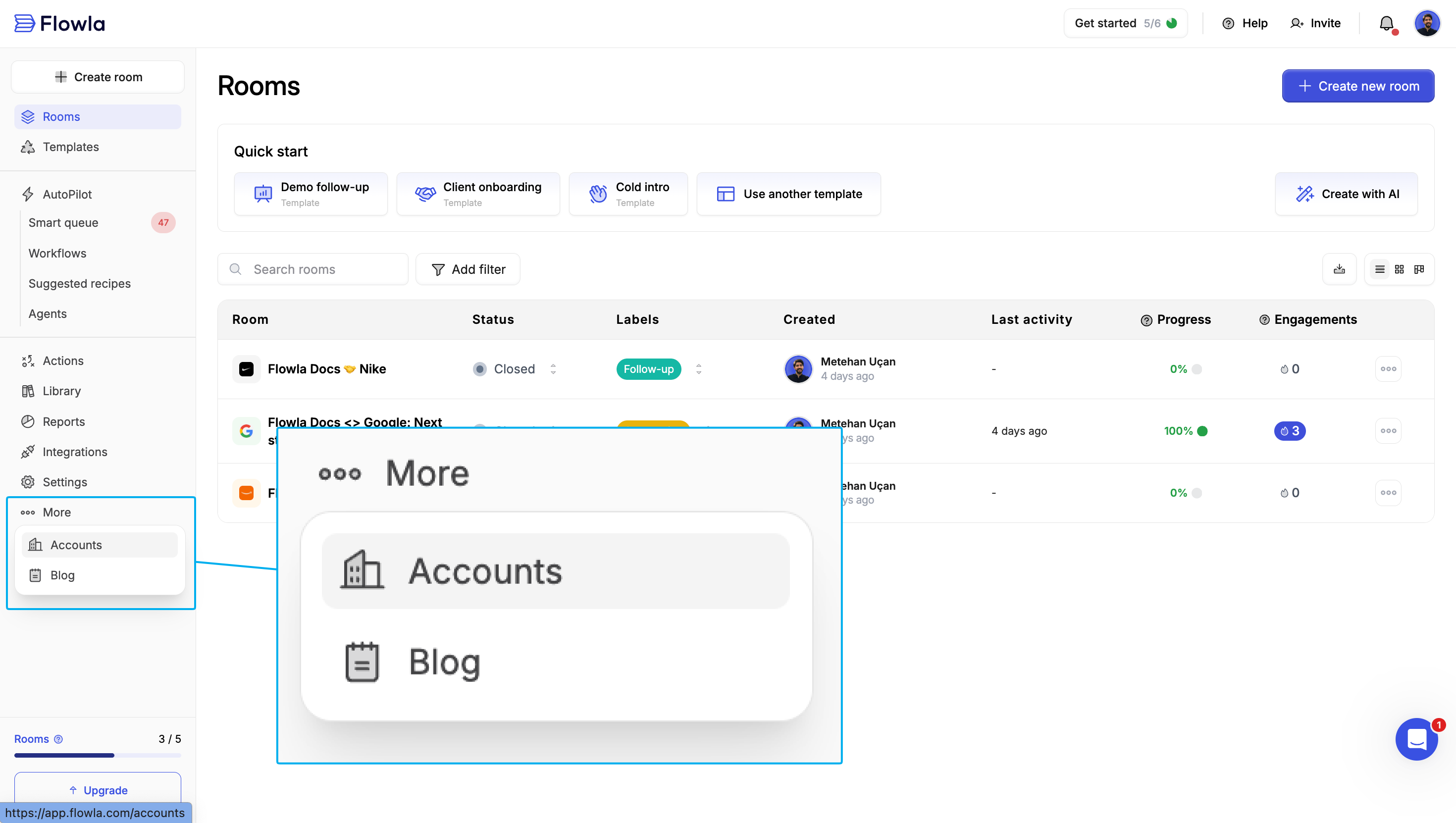
You can manage all your companies from More → Accounts to:- Update company information across all associated rooms
- Merge duplicate companies
- Add or update company logos
Target company and CRMs
Target companies are automatically pulled from the deal’s associated company in HubSpot, Salesforce, and Attio. When a room is linked to a CRM deal:- The target company syncs from the deal’s company record
- Company logo and details are pulled automatically
- Changes in the CRM update the room’s target company
Room style
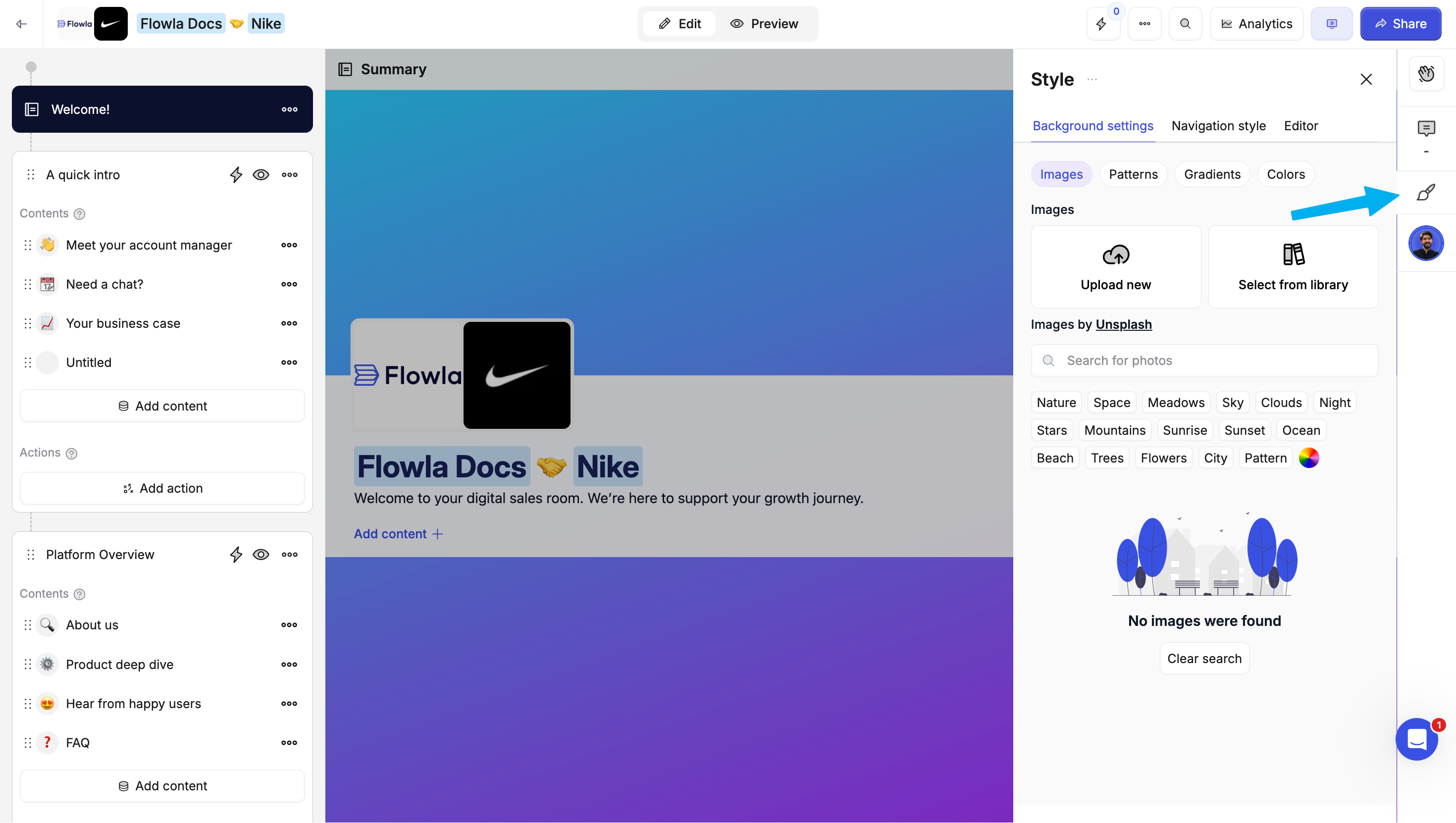
Rooms can be further personalized from the style menu inside the room editor.Background settings
On the Style menu, in the Background settings tab, customize the room background:| Option | Description |
|---|---|
| Images | Upload a custom background image |
| Patterns | Choose from pre-built pattern designs |
| Gradients | Apply gradient color backgrounds |
| Colors | Set a solid background color |
Navigation style
On the Style menu, in the Navigation style tab, customize the sidebar appearance:- Adjust sidebar colors and contrast
- Configure navigation visibility
Editor
Editor assets’ font can be centrally customized from the Style menu:- Font color - Set the default text color for content blocks
- Font family - Choose from available font options to match your brand